

Using Alchemist
Alchemist will launch into a setup screen on first launch, and then a home screen on future launches. Information in the setup screen is not shared, it is only used for quick connections.
Home Screen
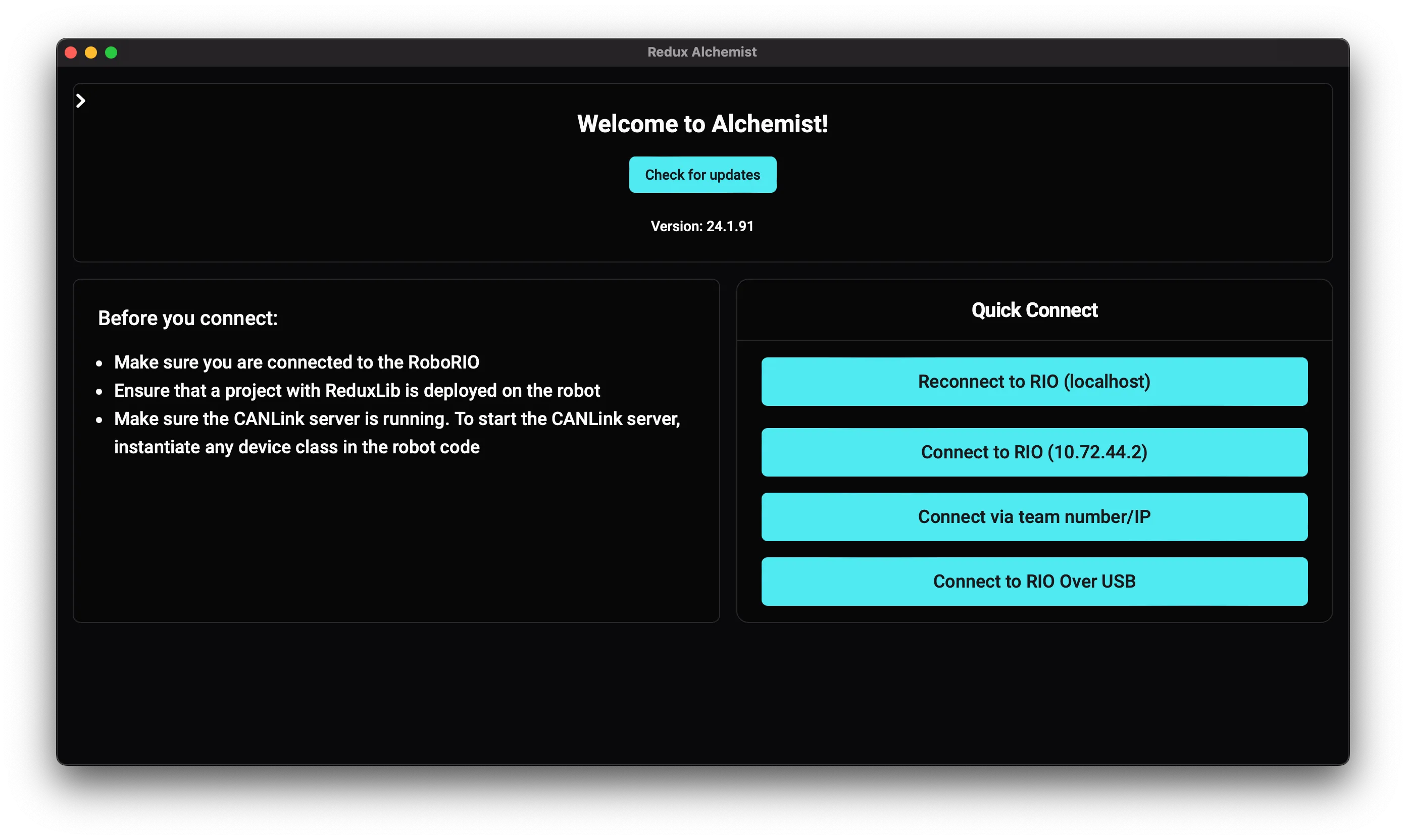
Section titled “Home Screen”This tab will allow you to quickly connect to your robot, check for updates, and navigate to devices once connected.
Connecting to a robot
Section titled “Connecting to a robot”In the home screen, enter either the appropriate team number or hostname under Enter IP Address or Team Number
(such as 9999 or roboRIO-9999-FRC.local) and click Connect to CANBus!.
Alternatively, you can connect to a RIO Over USB, reconnect to the last successfully connected IP, or use the Quick Connect.
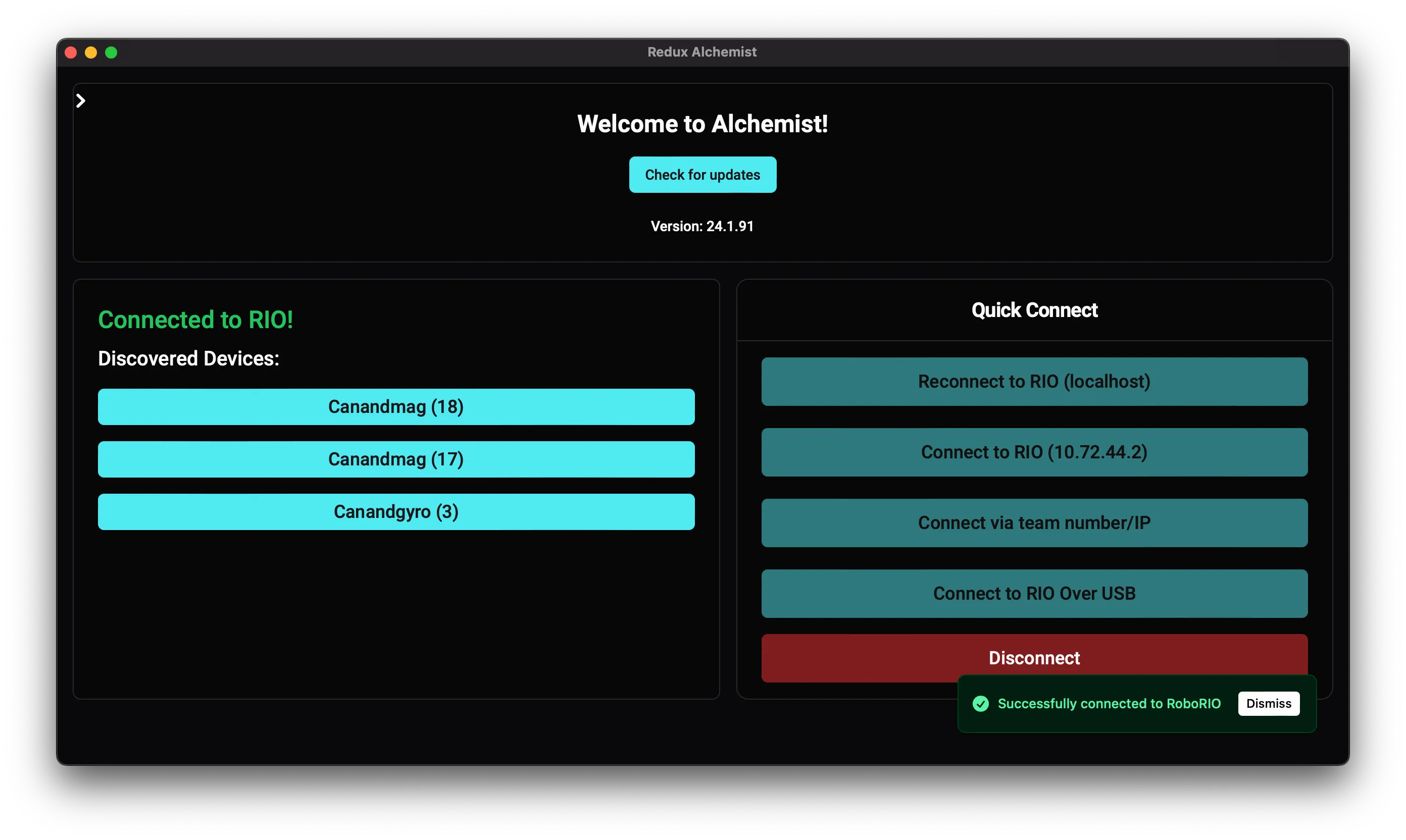
The UI should display Connected! on success, and devices should now be visible in the Device Pane. If there are issues connecting or detecting devices:
- Try pressing Disconnect and reconnecting with Connect to CANBus
- Ensure the Rio is accessible by navigating to the IP/hostname in a web browser, which should bring up NI’s network configuration pages
- Ensure that the CANLink server is running by redeploying your robot project with ReduxLib (see Setting Up the Redux CANLink Server)
- Check that the Redux CAN devices are connected, and try power cycling them.
- If all else fails, try restarting Alchemist.
The Device View
Section titled “The Device View”This tab configures individual Redux devices.
Device identification
Section titled “Device identification”All Redux CAN devices have a multi-color LED. Toggling the Blink LED! button on the top of a device page will strobe that device’s LED until toggled off.
Editing device settings
Section titled “Editing device settings”The settings tab has device specific settings (such as frame periods or filter widths) that can be edited.
The save button will save changes to the device, and the cancel button will revert all changes. Additionally, devices may be Factory Reset.
For more information on how to configure devices, see the individual device pages.
Firmware updates
Section titled “Firmware updates”The Upload Firmware button will open a window allowing you to update devices and download new firmware. Pressing fetch new updates will download updates from the internet, and pressing install downloaded firmware will automatically download the firmware to the device.